
Cursor vs GitHub Copilot in 2026: Hands-On Dev Benchmark
If you’re choosing an AI coding assistant in 2026, you’ve probably encountered the same two names again and again: Cursor vs GitHub Copilot.
A couple of years ago, the decision was relatively straightforward. GitHub Copilot was the familiar AI assistant inside an existing editor, while Cursor positioned itself as an AI-first development environment. Today, that distinction has become much less obvious.
Both tools can understand repositories, edit multiple files, run commands, work with different AI models, and handle increasingly autonomous coding tasks. GitHub Copilot now has agentic workflows, cloud agents, code review, CLI support, and a broad model catalog. Cursor, meanwhile, has pushed deeply into agent-driven development with multi-file editing, background agents, browser-based verification, and increasingly sophisticated project context.
So which one actually makes developers faster?
That’s the question this Cursor vs GitHub Copilot benchmark is designed to answer.
Rather than comparing a long list of checkboxes, we’ll look at what matters when you’re actually trying to build software: codebase understanding, multi-file changes, debugging, testing, model choice, Git workflows, IDE flexibility, pricing, and the amount of supervision each tool requires.
The short version is this: Cursor is particularly compelling for developers who want an AI-native, agent-heavy workflow, while GitHub Copilot is extremely attractive for developers who want AI deeply integrated into GitHub and their existing development environment.
But the details matter.
Cursor vs GitHub Copilot at a Glance
Before getting into the deeper benchmark, here’s the practical comparison.
| Category | Cursor | GitHub Copilot |
|---|---|---|
| Core approach | AI-native code editor | AI assistant integrated into existing tools |
| Multi-file agent work | Excellent | Excellent and rapidly improving |
| Codebase exploration | Excellent | Excellent |
| Existing IDE support | More limited | Very broad |
| GitHub integration | Good | Excellent |
| Cloud/remote agents | Yes | Yes |
| Code review | Available through Cursor tooling | Strong GitHub-native workflow |
| Model choice | Broad model selection | Broad model selection |
| Beginner friendliness | Moderate | High |
| Best for | Agent-heavy development | GitHub-centered development |
| Individual entry price | Free tier available | Free tier available |
| Paid individual plans | From $8/month on current Cursor plans | From $10/month for Pro |
Current pricing and included capabilities can change, so check the vendors’ official pricing pages before purchasing. GitHub currently lists Free, Pro, Pro+, and Max individual plans, with Pro starting at $10/month. Cursor’s current documentation lists Free, Plus, Premium, Super, and Ultra plans, with Plus starting at $8/month and higher tiers adding substantially more agent usage and features.
The table tells us something important: there isn’t a universal winner anymore.
The better question is which tool fits the way you work.
How We Should Benchmark AI Coding Tools
A common mistake in AI coding comparisons is to test only autocomplete.
That’s not enough in 2026.
Autocomplete is useful, but modern AI development has moved toward agents that can investigate a repository, make decisions, modify several files, execute commands, run tests, and revise their work.
A meaningful benchmark should therefore include at least six types of work:
1. Small code changes
Examples include:
- Adding a validation rule
- Renaming a function
- Creating a utility
- Updating an API endpoint
- Writing a small component
This measures everyday productivity.
2. Multi-file features
For example, ask the assistant to add user authentication to an existing application.
That might require changes to:
- Database models
- API routes
- Middleware
- Front-end components
- Environment configuration
- Tests
- Documentation
This is where repository context becomes extremely important.
3. Debugging
A useful test isn’t simply:
“Fix this error.”
A better benchmark gives the AI a real failing test or runtime error and asks it to determine the underlying cause.
4. Testing
The tool should be asked to:
- Understand existing tests.
- Add new tests.
- Run them.
- Diagnose failures.
- Modify the implementation when appropriate.
- Run the test suite again.
5. Refactoring
Refactoring tests whether the assistant can change structure without accidentally changing behavior.
6. Agent autonomy
Finally, give both systems a moderately complex task and measure how much supervision is necessary.
That’s arguably the most important test in Cursor vs GitHub Copilot today.
A tool that produces code quickly but requires you to constantly correct it isn’t necessarily faster.
Cursor vs GitHub Copilot for Real Development Tasks
Everyday coding: surprisingly close
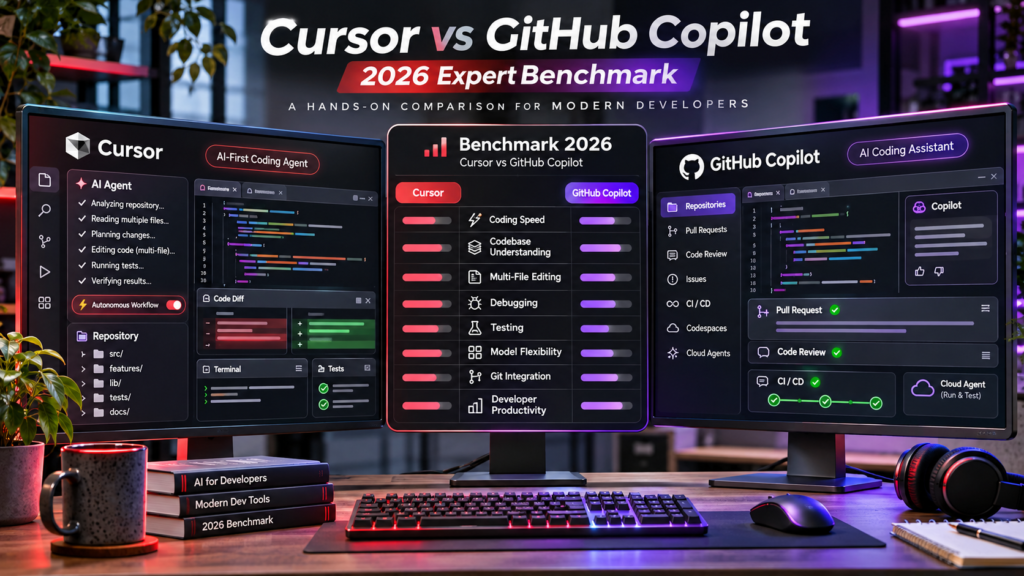
For straightforward coding, the difference between Cursor and GitHub Copilot isn’t as dramatic as some older comparisons suggest.
Both can handle routine programming requests such as generating functions, explaining unfamiliar code, creating tests, and modifying existing logic.
GitHub Copilot has an especially strong position here because it works across many popular environments, including Visual Studio Code, Visual Studio, JetBrains IDEs, Xcode, Neovim, and Eclipse.
That matters.
Imagine you’re a developer who has spent five years customizing a particular JetBrains workflow. Moving to an entirely different editor just to use another AI system may introduce unnecessary friction.
Copilot lets you keep the environment you already know.
Cursor takes a different approach. Instead of being primarily an AI layer added to an editor, it is built around an AI-first development experience. Its Agent can search the codebase, modify multiple files, execute terminal commands, and work through bugs and tests.
For a developer who frequently asks:
“Can you implement this feature across the project?”
Cursor’s approach can feel more natural.
The real difference appears when the task gets bigger
Consider a hypothetical SaaS dashboard.
You ask:
“Add a team invitation system. Users should be able to invite teammates, invitations should expire after seven days, admins should see pending invitations, and add tests for the API.”
That’s no longer a single-file coding task.
The assistant needs to understand your application architecture before changing anything.
This is where Cursor vs GitHub Copilot becomes a more interesting contest.
Cursor’s Agent is explicitly designed around this kind of repository-level task. It can explore the project, decide which files matter, make changes, run commands, and show the resulting diff.
Copilot has also moved far beyond autocomplete. Its agent mode can work across files, while Copilot’s cloud agent can research, plan, modify code, and create pull requests as part of a GitHub-centered workflow.
In other words, the gap is no longer:
Agent vs autocomplete.
It’s increasingly:
AI-native agent workflow vs GitHub-native agent workflow.
That’s a much closer race.
Codebase Context and Multi-File Editing
Codebase awareness is one of the most important factors in Cursor vs GitHub Copilot.
An AI assistant can generate technically correct code and still be useless if it doesn’t understand how your application is organized.
Suppose your project uses a custom authentication layer rather than a standard framework.
A developer might know:
- Which service owns authentication
- Where permissions are checked
- Which database table contains roles
- Which frontend hook exposes the current user
- Which tests define expected behavior
An AI assistant has to discover those relationships.
Cursor makes project-level context a central part of its workflow. Its Agent can search through the repository and use relevant files while completing a task. Cursor also supports project rules that can communicate architectural decisions and coding conventions to the agent.
That can be extremely useful for large projects.
Copilot approaches repository intelligence differently and has also become significantly more capable. GitHub’s current agent tooling is designed to work with repositories, issues, pull requests, and cloud-based coding tasks.
A practical observation
There’s a subtle distinction here.
Cursor feels optimized around “work on my codebase.”
Copilot feels optimized around “work on my codebase within GitHub.”
Neither philosophy is inherently better.
If GitHub is already the center of your development workflow, Copilot’s integration can be a major advantage.
If the editor itself is where you spend most of your time, Cursor’s AI-native experience can feel more cohesive.
Cursor vs GitHub Copilot for Agent Mode, Debugging, and Testing
Agent mode is where the modern AI coding battle gets interesting.
Cursor’s documentation describes Agent as capable of building features, refactoring existing applications, fixing bugs, writing tests, and executing shell commands. It also provides separate Ask, Plan, and Debug modes for different types of work.
That separation is useful.
For example, instead of immediately telling an agent to change your application, you can first ask it to investigate the architecture.
Then you can ask it to create a plan.
Only after reviewing the plan do you allow implementation.
That’s a much safer workflow than:
“Build everything.”
and hoping the AI made sensible decisions.
Background agents change the equation
Cursor’s Cloud Agents are designed for longer-running tasks. They operate remotely on dedicated virtual machines, can modify repositories, run commands and tests, and return artifacts such as logs, screenshots, and videos.
This introduces a different development pattern.
Instead of:
You → AI → You → AI → You
you can increasingly work like:
You → define task → AI works → you review result
That’s a significant productivity shift when the task is well specified.
GitHub has a similar direction with Copilot’s cloud agent. The current Copilot plans include cloud-based agent workflows that can research, plan, write code, and work toward pull requests.
Debugging: don’t measure only whether the first answer works
Here’s a better way to evaluate AI debugging.
Give the tool:
- A failing test
- A stack trace
- An unfamiliar codebase
- A bug that isn’t obvious from the error message
Then measure:
- Did it reproduce the issue?
- Did it identify the correct file?
- Did it identify the root cause?
- Did it make the smallest sensible change?
- Did it create or update a regression test?
- Did it verify the fix?
That six-step process is far more meaningful than asking which tool writes a function faster.
Models, Flexibility, and Developer Control
Another reason Cursor vs GitHub Copilot is harder to settle in 2026 is that neither product is simply “one AI model.”
Both platforms expose multiple models, although availability depends on the plan and feature.
GitHub’s current model catalog includes models from OpenAI, Anthropic, Google, Microsoft, xAI, and others, with different models optimized for speed, reasoning, coding, or long-running agentic work.
That means the question isn’t simply:
“Which AI is smarter?”
It’s increasingly:
“Which platform gives me the right model, context, tools, and workflow for this task?”
Cursor also supports multiple frontier model providers, with its current plans offering different levels of access and usage.
Why model choice matters
A fast model might be perfect for:
- Boilerplate
- Small edits
- Documentation
- Simple refactoring
A stronger reasoning model may be preferable for:
- Architectural changes
- Difficult debugging
- Large refactors
- Security-sensitive logic
- Complex agent tasks
So a good AI coding workflow doesn’t necessarily use the most powerful model for everything.
That’s expensive and often unnecessary.
A sensible developer might use a fast model for a 10-line change and a more capable model for a complicated repository-wide migration.
Pricing and Overall Value
Price is where the Cursor vs GitHub Copilot decision becomes very practical.
GitHub currently offers a Free plan, Pro at $10/month, Pro+ at $39/month, and Max at $100/month for individuals. Its paid plans include increasingly large AI-credit allowances and access to more advanced agent functionality.
GitHub also has Business and Enterprise offerings for organizations. Business is currently listed at $19 per user/month, while Enterprise is $39 per user/month.
Cursor’s current pricing structure lists Free, Plus at $8/month, Premium at $30/month, Super at $100/month, and Ultra at $200/month, with higher tiers providing significantly more usage and agent functionality.
The numbers alone don’t tell the entire story.
The real calculation is productivity
Suppose one tool costs $20 more per month.
If it saves you two hours of frustrating debugging, that difference could be irrelevant.
But if you’re a casual programmer who writes a few scripts each month, paying for a high-end agent plan may be difficult to justify.
This leads to a simple rule:
Don’t buy an AI coding tool based on the number of features. Buy it based on the amount of work you actually delegate to it.
Pros and Cons
Cursor: Pros
1. Excellent agent-first workflow
Cursor is designed around agents that can work across a project rather than simply suggesting the next line of code.
2. Strong multi-file development
It’s particularly attractive when a feature requires coordinated changes across multiple parts of a repository.
3. Flexible development modes
Ask, Plan, Agent, and Debug modes provide different levels of autonomy and interaction.
4. Background development
Cloud Agents can continue working remotely while your local machine isn’t being used.
5. Strong project customization
Project rules can help agents understand architecture and development conventions.
Cursor: Cons
1. It requires adopting another editor
For developers deeply invested in their current IDE, that can be a real switching cost.
2. Heavy agent use can become expensive
The more autonomous work you delegate, the more important usage limits and plan economics become.
3. More autonomy means more responsibility
An agent that can modify dozens of files can also make dozens of incorrect changes if the task is poorly specified.
That’s not a Cursor-specific flaw. It’s a general property of powerful coding agents.
GitHub Copilot: Pros
1. Excellent GitHub integration
If your development workflow already revolves around GitHub, Copilot fits naturally into it.
2. Broad IDE support
Copilot works across many established development environments rather than requiring you to move entirely to a new editor.
3. Strong agent ecosystem
Copilot now supports IDE agent mode, cloud-based agents, CLI workflows, code review, and third-party coding agents on applicable plans.
4. Competitive entry price
The $10/month Pro plan makes advanced functionality accessible without requiring a large commitment.
5. Strong fit for teams
GitHub’s organizational controls, repositories, pull requests, reviews, and governance make Copilot especially attractive for established engineering teams.
GitHub Copilot: Cons
1. Feature complexity
Copilot has evolved into a large platform. New users may need time to understand which agent, model, interface, or workflow to use.
2. GitHub-centric workflows aren’t ideal for everyone
If your work doesn’t revolve around GitHub, some of Copilot’s biggest advantages become less important.
3. Usage economics require attention
Modern agent workflows consume AI credits differently depending on the model and complexity of the task. GitHub explicitly notes that agent interactions and other advanced features consume AI credits, while traditional code completions remain unlimited on paid plans.
Who Should Choose Cursor vs GitHub Copilot?
There is no single winner in Cursor vs GitHub Copilot.
Instead, think about your workflow.
Choose Cursor if…
You should seriously consider Cursor if:
- You frequently work on large repositories.
- You want AI agents to edit multiple files.
- You like an AI-first development environment.
- You frequently refactor existing applications.
- You want to experiment with different AI models.
- You want background agents handling longer tasks.
- You are comfortable reviewing large diffs.
- You want the AI to participate more actively in implementation.
Cursor is particularly interesting for solo developers, startup developers, indie hackers, and engineers who spend much of their day inside one codebase.
Choose GitHub Copilot if…
Copilot may be the better choice if:
- Your organization already uses GitHub heavily.
- You want to keep your existing IDE.
- Pull requests and code review are central to your workflow.
- You want broad editor support.
- You want a relatively inexpensive entry point.
- You use GitHub Issues as the source of development tasks.
- You want GitHub-native cloud agents.
For many professional teams, that integration can outweigh differences in the editor experience.
And there’s a third answer: use both
This isn’t necessarily wasteful.
Some developers can reasonably use Copilot for everyday assistance and GitHub workflows while using Cursor for larger agent-driven tasks.
However, paying for two AI coding subscriptions only makes sense if the two tools solve different problems for you.
Otherwise, you’re probably just paying twice for overlapping capabilities.
A Practical Benchmark You Can Run Yourself
If you’re still undecided, don’t rely on reviews.
Run your own 60-minute benchmark.
Use the same repository and the same prompts in both tools.
Test 1: Small feature
Ask:
“Add email validation to the registration form. Update the existing tests and add a regression test.”
Record:
- Time to completion
- Number of manual edits
- Test result
- Number of unnecessary changes
Test 2: Multi-file feature
Ask:
“Add a user notification preference system using the project’s existing architecture. Update the API, database model, UI, and tests.”
Now measure how well each assistant understands the architecture.
Test 3: Bug investigation
Give it a real failing test and ask it to reproduce and fix the problem.
Don’t tell it where the bug is.
Test 4: Refactoring
Ask it to refactor one subsystem without changing externally visible behavior.
Run the complete test suite afterward.
Test 5: Autonomous task
Give both systems a clearly defined feature and minimal supervision.
Then compare:
How often did you have to intervene?
That number may tell you more than benchmark charts.
What This Benchmark Reveals
The biggest lesson from comparing Cursor vs GitHub Copilot is that AI coding productivity isn’t simply about generating more code.
It’s about reducing the amount of human effort required to get from:
idea → implementation → verification → review
A coding assistant that produces 500 lines of code isn’t necessarily better than one that produces 200.
If those 500 lines require extensive cleanup, the apparent productivity gain disappears.
Likewise, an agent that makes fewer changes but correctly understands the architecture can be dramatically more useful.
This is why experienced developers should judge AI tools by completed outcomes, not raw generation speed.
The best workflow is usually:
- Give the AI a clear objective.
- Let it inspect the relevant code.
- Ask for a plan when the task is complex.
- Review architectural assumptions.
- Allow implementation.
- Run tests.
- Review the diff.
- Ask the AI to explain unusual changes.
- Perform a human review before merging.
That final step isn’t optional.
AI agents are powerful development tools, not autonomous replacements for engineering judgment.
Frequently Asked Questions
Is Cursor better than GitHub Copilot in 2026?
Cursor can be better for developers who prioritize an AI-native editor and autonomous multi-file workflows. GitHub Copilot can be better for developers and teams that want AI deeply integrated with GitHub, existing IDEs, pull requests, and code review.
Is Cursor more powerful than Copilot for large projects?
Cursor is particularly strong for repository-wide agent workflows and multi-file changes. However, Copilot’s current cloud-agent and repository capabilities mean the difference is much smaller than it was in earlier generations of AI coding tools.
Is GitHub Copilot cheaper than Cursor?
At the entry-level paid tier, GitHub Copilot Pro is currently $10/month, while Cursor’s current Plus plan is listed at $8/month. However, the plans have different usage limits, models, and features, so comparing headline prices alone can be misleading.
Can Cursor and GitHub Copilot use multiple AI models?
Yes. Both products now provide access to multiple AI models, although the available models and usage rules depend on the product, plan, and feature being used. GitHub’s current documentation lists models from several providers, including OpenAI, Anthropic, Google, Microsoft, and xAI.
Which is better for beginners: Cursor or GitHub Copilot?
GitHub Copilot may be easier for beginners who already use a supported IDE because they can add AI assistance without completely changing their development environment. Cursor can be more appealing to beginners who want an editor designed around AI from the beginning.
Can Cursor and Copilot write an entire application?
Both can assist with substantial application development, including multi-file implementation, testing, debugging, and refactoring. However, neither should be treated as a substitute for requirements analysis, security review, architecture decisions, or human testing.
Does GitHub Copilot have an agent mode?
Yes. GitHub Copilot includes agent mode in supported development environments, as well as cloud-agent capabilities on applicable plans. GitHub says its agents can work on tasks involving research, planning, code changes, and pull requests.
Is Cursor worth paying for in 2026?
It can be, especially if you regularly use autonomous agents, work across many files, and value an AI-first development workflow. If you mainly need autocomplete and occasional coding help, a less expensive plan or GitHub Copilot may offer better value.
Final Verdict: Cursor vs GitHub Copilot
So, who wins Cursor vs GitHub Copilot?
If you’re looking for one dramatic winner, you’re asking the wrong question.
In 2026, both products have moved into the same broader category: agentic software development platforms.
Cursor’s strongest argument is its AI-native development experience. Its Agent, project context, multi-file editing, planning workflow, and Cloud Agents make it particularly compelling for developers who want to delegate meaningful chunks of implementation.
GitHub Copilot’s strongest argument is ecosystem integration. GitHub has connected AI assistance to the places where software teams already work: repositories, issues, pull requests, code review, multiple IDEs, CLI workflows, and cloud-based agents.
For an independent developer building a new product, Cursor may be the more exciting choice.
For a team already deeply invested in GitHub, Copilot may be the more practical choice.
For someone who simply wants excellent AI autocomplete without changing their workflow, Copilot is difficult to ignore.
And for a developer who wants to experiment with autonomous, repository-level development, Cursor deserves serious consideration.
The most important point is this:
Don’t choose an AI coding tool because someone says it is “the smartest.” Choose the one that reduces the number of engineering decisions and manual steps you have to perform without reducing the quality of the final software.
Run the same five-task benchmark on your own repository. Measure completion time, intervention count, test quality, unnecessary changes, and final code quality.
After that, your answer to Cursor vs. GitHub Copilot will probably be much clearer than any generic leaderboard can make it.
Specializing in AI applications, web architecture, high-performance WordPress infrastructure, and modern productivity tooling.
Discussion & Feedback 0
Join the technical conversation. Constructive questions, benchmarks, and experiences are welcome.
No Comments Yet
Have questions about this guide, discovered a better tool alternative, or benchmarked results? Be the first to start the discussion!