
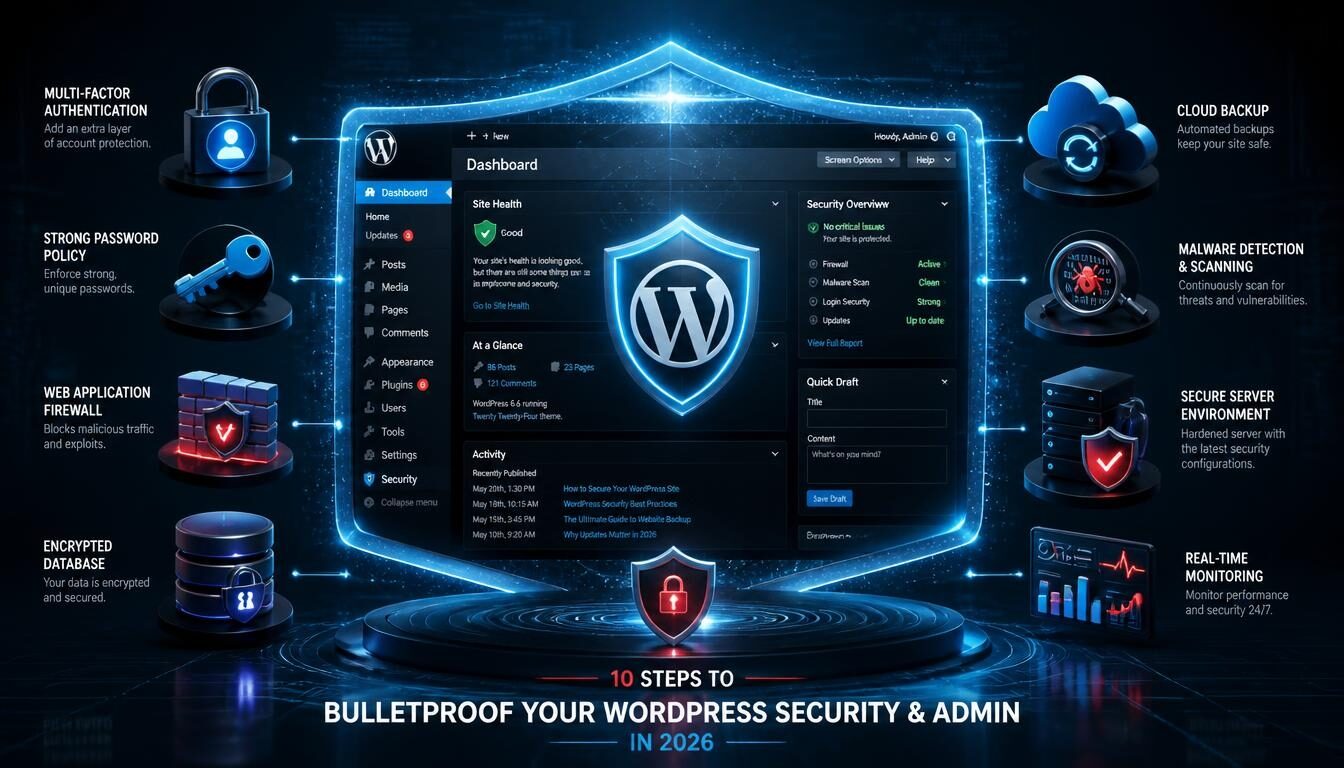
10 Steps to Bulletproof Your WordPress Security & Admin in 2026
WordPress security isn’t something you set once and forget.
If your website earns money, collects customer information, publishes content, generates leads, or simply represents your business online, the WordPress admin area is one of the most important things you need to protect.
And attackers don’t necessarily need an exotic zero-day vulnerability to cause trouble. A reused password, abandoned plugin, outdated theme, excessive administrator permissions, or poorly protected login page can be enough.
The risk is becoming harder to ignore. Verizon’s 2026 Data Breach Investigations Report found that credential abuse remained pervasive, appearing in 39% of breaches when all stages of an attack were considered, while exploitation of vulnerabilities reached approximately 31% in the report’s analysis.
WordPress itself also continues to release security updates. For example, WordPress 7.1.5 was released on November 18, 2026, with multiple security fixes, and WordPress recommended updating sites immediately.
So, how do you build a WordPress site that’s genuinely harder to compromise?
You don’t need to turn into a cybersecurity engineer. You need to eliminate the common weak points systematically.
This guide walks through 10 practical WordPress security steps for 2026, from administrator accounts and MFA to updates, backups, WAF protection, permissions, monitoring, and recovery planning.
Step 1: Start With a WordPress Security Audit
Before installing another security plugin, take a step back.
Security starts with knowing what you’re actually protecting.
Open your WordPress dashboard and make a simple inventory of:
- WordPress core version
- PHP version
- Active plugins
- Inactive plugins
- Active theme
- Inactive themes
- Administrator accounts
- Editor and Author accounts
- Hosting provider
- SSL/TLS configuration
- Backup system
- CDN or WAF
- Login protection
- Malware monitoring
- Database access
- Third-party integrations
This exercise often reveals more than expected.
For example, imagine discovering three administrator accounts belonging to people who haven’t worked on the website for two years. Or an old plugin that was installed for a temporary campaign and never removed.
Those aren’t merely housekeeping issues. They’re part of your attack surface.
WordPress’s own security documentation recommends removing software you’re not using and keeping active components updated.
Quick audit rule: if you can’t explain why a plugin, user, integration, or service exists, investigate it before leaving it enabled.
Step 2: Protect Every Administrator Account
Your WordPress administrator account is effectively a master key.
A compromised administrator can potentially install plugins, change themes, create users, modify settings, publish malicious content, or alter the website itself. WordPress documentation notes that administrators have extensive capabilities, including installing and deleting plugins and themes and managing users.
Start with the basics:
Use a unique password
Never reuse the WordPress administrator password on another website.
A password manager can generate and store a long, random password so you don’t have to remember it.
Don’t share administrator credentials
If a developer needs access, create an individual account.
If a marketing employee only needs to publish articles, they probably don’t need administrator privileges.
Delete old accounts
Former employees, contractors and temporary developers shouldn’t retain access indefinitely.
Review administrator accounts regularly
Once every month, check:
Users → All Users
Look for unfamiliar accounts, unexpected role changes, or accounts that no longer need elevated privileges.
This matters because credential abuse remains a major security problem. Verizon’s 2025 research found compromised credentials were an initial access vector in 22% of the breaches it reviewed.
Step 3: Use MFA or Passkeys for Privileged Users
A strong password is important.
A strong password plus another authentication factor is considerably better.
Multi-factor authentication (MFA) requires something beyond the password, such as an authenticator code, security key, or other approved authentication method.
CISA describes MFA as one of the strongest defenses against password-based attacks and recommends phishing-resistant methods where practical.
For a WordPress website, prioritize MFA for:
- Administrators
- Site owners
- Developers
- Hosting administrators
- Anyone with plugin/theme installation privileges
If your security provider supports passkeys or hardware security keys, consider them for highly privileged accounts.
Don’t make the common mistake of protecting only your personal administrator account. If another administrator has a weak login, your site can still be exposed.
Step 4: Keep WordPress, Plugins, Themes and PHP Updated
This is one of the least exciting security recommendations—and one of the most important.
WordPress vulnerabilities are regularly patched. The WordPress security team continues to publish security releases throughout the year. WordPress 7.1.5, released on November 18, 2026, is a current example of a security release that should be applied promptly.
Updates aren’t limited to WordPress core.
You also need to maintain:
- Plugins
- Themes
- PHP
- Hosting software
- Server components
- Security tools
- CDN/WAF configurations
WordPress specifically warns that older versions can remain exposed after vulnerabilities become publicly known.
A safer update workflow
For important production websites:
- Maintain a recent backup.
- Test major updates when practical.
- Apply security releases promptly.
- Check the website after updating.
- Monitor forms, checkout, login and critical functions.
Don’t postpone a security update for months simply because the site appears to be working normally.
Step 5: Reduce Plugins and Remove Unused Software
Every plugin adds functionality.
It can also add complexity.
That doesn’t mean plugins are inherently dangerous. It means unnecessary software creates additional opportunities for configuration mistakes, outdated code, vulnerabilities, or compatibility problems.
A useful question isn’t:
“Is this plugin popular?”
Ask:
“Does my website still need this plugin?”
Remove plugins and themes that aren’t necessary.
Also avoid downloading premium plugins or themes from unofficial sources. A “free” copy of a paid plugin can become extremely expensive if it contains malicious code.
Before installing a plugin, evaluate:
- Developer reputation
- Update history
- Compatibility
- Support quality
- Vulnerability history
- Whether the functionality is genuinely necessary
The goal isn’t to achieve an arbitrary plugin count. It’s to maintain a small, understandable and actively maintained software stack.
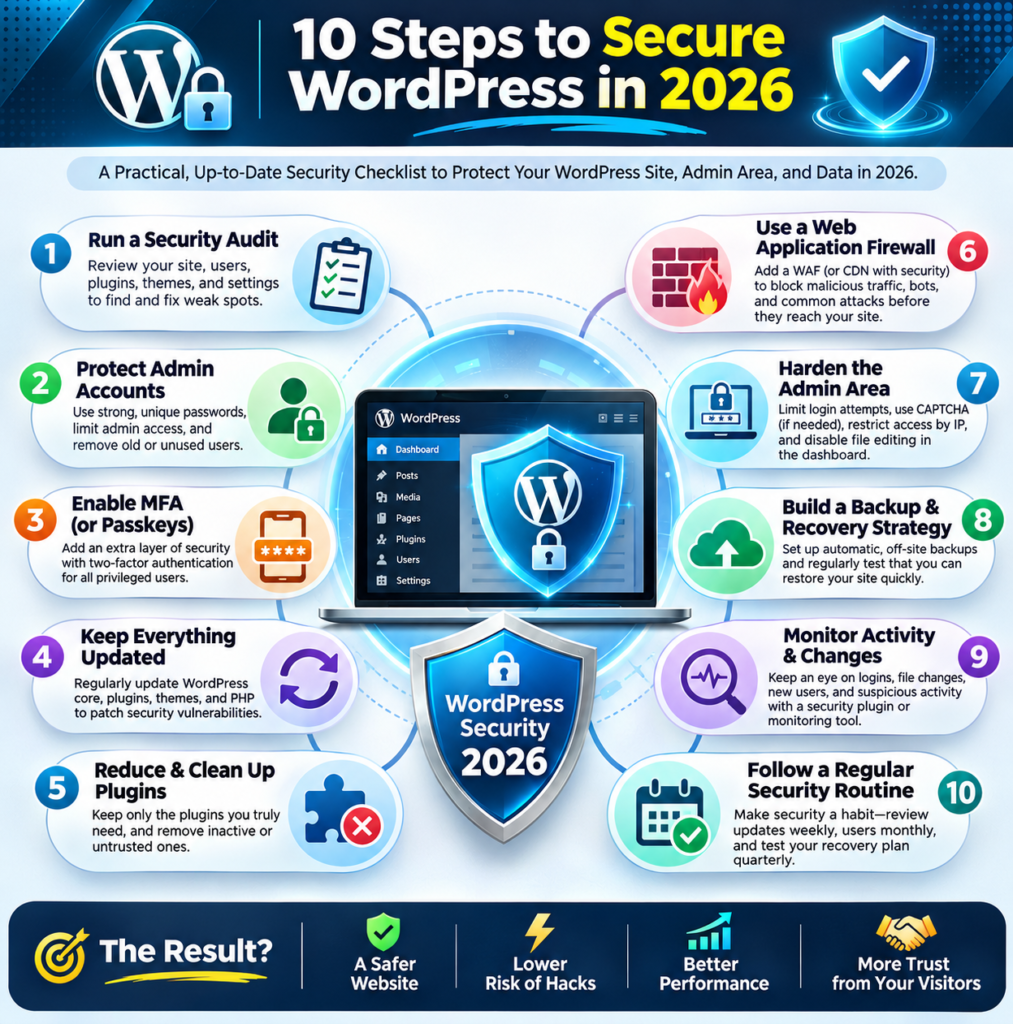
Step 6: Put a WAF Between Attackers and WordPress
A Web Application Firewall, or WAF, adds another defensive layer between the public internet and your WordPress installation.
Think of it as a security checkpoint.
Instead of every suspicious request reaching your server and asking WordPress to deal with it, an edge WAF can block or challenge some malicious traffic before it reaches the origin.
WordPress’s own hardening guidance discusses WAFs and reverse-proxy services as ways to filter malicious traffic before it reaches WordPress.
A good setup may include:
Visitor → CDN/WAF → Web Server → WordPress
Depending on your hosting environment, you may use a managed WAF, CDN-based protection, host-level firewall, or WordPress security plugin.
A WAF isn’t magic, though. It doesn’t replace updates, MFA, backups or secure passwords.
Think of security as layers rather than a single product.
Step 7: Harden the WordPress Admin Area
The WordPress login page deserves special attention because attackers can automate login attempts.
WordPress recommends protecting against brute-force attacks through strong passwords, MFA, rate limiting, monitoring and edge/WAF protection. It also notes that hiding the login URL may reduce noise but shouldn’t be your primary defense.
Consider implementing:
- Login rate limiting
- CAPTCHA or bot protection where appropriate
- MFA
- Login anomaly monitoring
- IP restrictions for highly controlled environments
- WAF rules
- Strong password policies
- Automatic logout/session controls where appropriate
You can also disable dashboard file editing:
define( 'DISALLOW_FILE_EDIT', true );WordPress documents this as a way to remove dashboard-based theme and plugin file editing capabilities. However, it isn’t a complete security solution and doesn’t stop every form of malicious file upload.
Don’t forget XML-RPC
If your website doesn’t need XML-RPC functionality, evaluate whether it should be disabled or restricted.
If it is required, rate-limit and protect it appropriately. WordPress specifically recommends protecting or disabling XML-RPC when unnecessary.
Step 8: Build a Backup and Recovery Strategy {#step8}
Here’s an uncomfortable question:
If your website disappeared tonight, could you restore it tomorrow morning?
If the answer is “I’m not sure,” your security strategy isn’t complete.
A backup is different from recovery.
You need to know:
- Where backups are stored
- How frequently they run
- Whether databases are included
- Whether media files are included
- How long backups are retained
- Whether backups are isolated from the website
- How restoration works
For a business website, keeping multiple recovery points is sensible.
Most importantly, test restoration.
A backup that has never been tested is a promise, not proof.
A practical approach is to maintain:
Website → Primary backup → Separate/off-site backup → Tested recovery procedure
If ransomware or a malicious administrator compromises the website, an isolated backup may be what allows you to rebuild without negotiating with an attacker.
Step 9: Monitor Users, Files and Suspicious Activity
Prevention is only half of WordPress security.
Detection matters too.
You want to know when something unusual happens.
Useful monitoring signals include:
- New administrator accounts
- Failed login spikes
- Successful logins from unusual locations
- Plugin installation
- Theme changes
- File modifications
- Unexpected PHP files
- Database changes
- Sudden redirects
- Spam pages appearing in search
- Unexpected outbound links
A security plugin can help, but don’t blindly enable every feature it offers.
Too many alerts create fatigue.
If every normal event generates a warning, you’ll eventually stop paying attention.
Instead, prioritize meaningful events.
For example:
High priority: new administrator created.
Medium priority: repeated failed logins.
Lower priority: routine editorial activity.
The goal is actionable monitoring, not an inbox full of security notifications.
Step 10: Create a WordPress Security Routine You Can Actually Follow
The strongest security system is the one you maintain.
Here’s a practical schedule for a small business or content website.
Every week
- Review available updates
- Check backup status
- Review security alerts
- Look for suspicious admin activity
- Confirm important forms still work
Every month
- Review users and roles
- Remove unused plugins/themes
- Review administrator accounts
- Check hosting security settings
- Test important website functions
- Review storage and backup retention
Every quarter
- Test a restoration process
- Review WAF rules
- Review third-party integrations
- Rotate credentials where appropriate
- Review who still needs privileged access
- Check whether your security strategy still matches the website
WordPress’s role system is designed around different levels of capability, so use the least powerful role that allows someone to do their job.
Should You Use AI for WordPress Security?
AI can be useful for security—but it shouldn’t become your security strategy.
AI-assisted tools can help identify suspicious login patterns, summarize security logs, explain unfamiliar code, prioritize alerts, and help administrators understand vulnerability reports.
For a small website owner without a security team, that can be valuable.
Advantages of AI-assisted security
- Faster analysis of large logs
- Better alert prioritization
- Automated anomaly detection
- Faster explanation of technical warnings
- Assistance with security audits
- Help identifying suspicious patterns
Disadvantages and risks
AI can also make mistakes.
A security recommendation generated by an AI system might be incomplete, outdated, or inappropriate for your particular hosting environment. Blindly copying security code into wp-config.php, .htaccess, or server configuration can even break a website.
Use AI as an assistant, not an autonomous administrator.
Before implementing a security recommendation, verify it against official WordPress documentation, your hosting provider’s documentation, or another trusted technical source.
For integrations that need programmatic access, WordPress provides Application Passwords that can be individually revoked instead of sharing a user’s main password. WordPress recommends treating these credentials like secrets and creating separate credentials for separate applications.
WordPress Security: The Simple 80/20 Strategy
If you’re overwhelmed by the list, start here.
Prioritize these five actions:
- Enable MFA for every administrator.
- Keep WordPress, plugins, themes and PHP updated.
- Remove unused plugins, themes and user accounts.
- Use reliable backups and test restoration.
- Put a WAF/CDN layer in front of the website where appropriate.
Those steps won’t make a website literally “bulletproof.” No internet-connected system can honestly promise that.
But they can dramatically reduce the number of easy opportunities an attacker has.
The 2026 threat environment makes layered defense especially important. Verizon’s latest research shows that both credential abuse and vulnerability exploitation remain significant parts of real-world attacks.
WordPress Security FAQ
What is the most important WordPress security measure?
For administrator accounts, strong unique passwords combined with MFA should be among your highest priorities. Regular software updates, backups and layered network protection are also essential.
How often should I update WordPress plugins?
Check for updates at least weekly and apply security updates promptly. For important production websites, maintain backups and test significant changes before deployment when practical.
Is a WordPress security plugin enough?
No. A security plugin can provide useful detection, firewall and login protections, but it cannot compensate for weak passwords, outdated software, poor permissions or missing backups.
Should I hide my WordPress login URL?
Changing or obscuring the login URL can reduce automated login noise, but it shouldn’t be treated as a primary security control. WordPress recommends stronger protections such as MFA, rate limiting, monitoring and WAF protection.
Should I disable XML-RPC?
If your website doesn’t need XML-RPC, disabling it can reduce unnecessary exposure. If you need it for a legitimate integration, protect and rate-limit it rather than disabling functionality blindly.
How many WordPress administrators should a website have?
Keep administrator access limited to people who genuinely need it. Everyone else should receive the lowest WordPress role that allows them to perform their responsibilities.
Are WordPress backups enough to protect my website?
Backups help you recover from incidents, but they don’t prevent attacks. Maintain separate, reliable backups and periodically test that you can actually restore the website.
Can AI secure my WordPress website automatically?
AI can assist with monitoring, analysis and troubleshooting, but it shouldn’t replace human oversight. Security changes should be verified before they’re applied to a production website.
Conclusion: Make WordPress Security a Habit, Not a Panic Response
Good WordPress security isn’t about finding one magical plugin.
It’s about eliminating unnecessary risk, protecting privileged accounts, keeping software current, limiting permissions, monitoring important activity and maintaining a recovery plan.
The biggest improvement you can make today is often surprisingly simple: open your WordPress dashboard and start auditing what you have.
Who has administrator access?
Which plugins are unused?
When was your last successful backup?
Is MFA enabled?
Can you actually restore the website?
Those questions are far more valuable than installing five more security plugins and hoping for the best.
Start with the fundamentals, add layers where they make sense, and review the system regularly.
Secure WordPress sites aren’t created by one dramatic security move. They’re maintained through dozens of small, consistent decisions.
Specializing in AI applications, web architecture, high-performance WordPress infrastructure, and modern productivity tooling.
Discussion & Feedback 0
Join the technical conversation. Constructive questions, benchmarks, and experiences are welcome.
No Comments Yet
Have questions about this guide, discovered a better tool alternative, or benchmarked results? Be the first to start the discussion!